Showing posts with label Android Developer Libs. Show all posts
Android :
Formats supported : PNG, JPEG, JPG, SVG, 9-Patch images (Recommended)


Screen Portrait Landscape
LDPI 200x320px 320x200px
MDPI 320x480px 480x320px
HDPI 480x800px 800x480px
XHDPI 720px1280px 1280x720px
XXHDPI 960px1600px 1600x960px
XXXHDPI 1280px1920px 1920x1280px


iOS :
Formats supported : PNG

Tablet (iPad)
Non-Retina (1x)
Portrait: 768x1024px
Landscape: 1024x768px

Retina (2x)
Portrait: 1536x2048px
Landscape: 2048x1536px

Handheld (iPhone, iPod)
Non-Retina (1x)
Portrait: 320x480px
Landscape: 480x320px

Retina (2x)
Portrait: 640x960px
Landscape: 960x640px

iPhone 5 Retina (2x)
Portrait: 640x1136px
Landscape: 1136x640px

iPhone 6 (2x)
Portrait: 750x1334px
Landscape: 1334x750px

iPhone 6 Plus (3x)
Portrait: 1242x2208px
Landscape: 2208x1242px
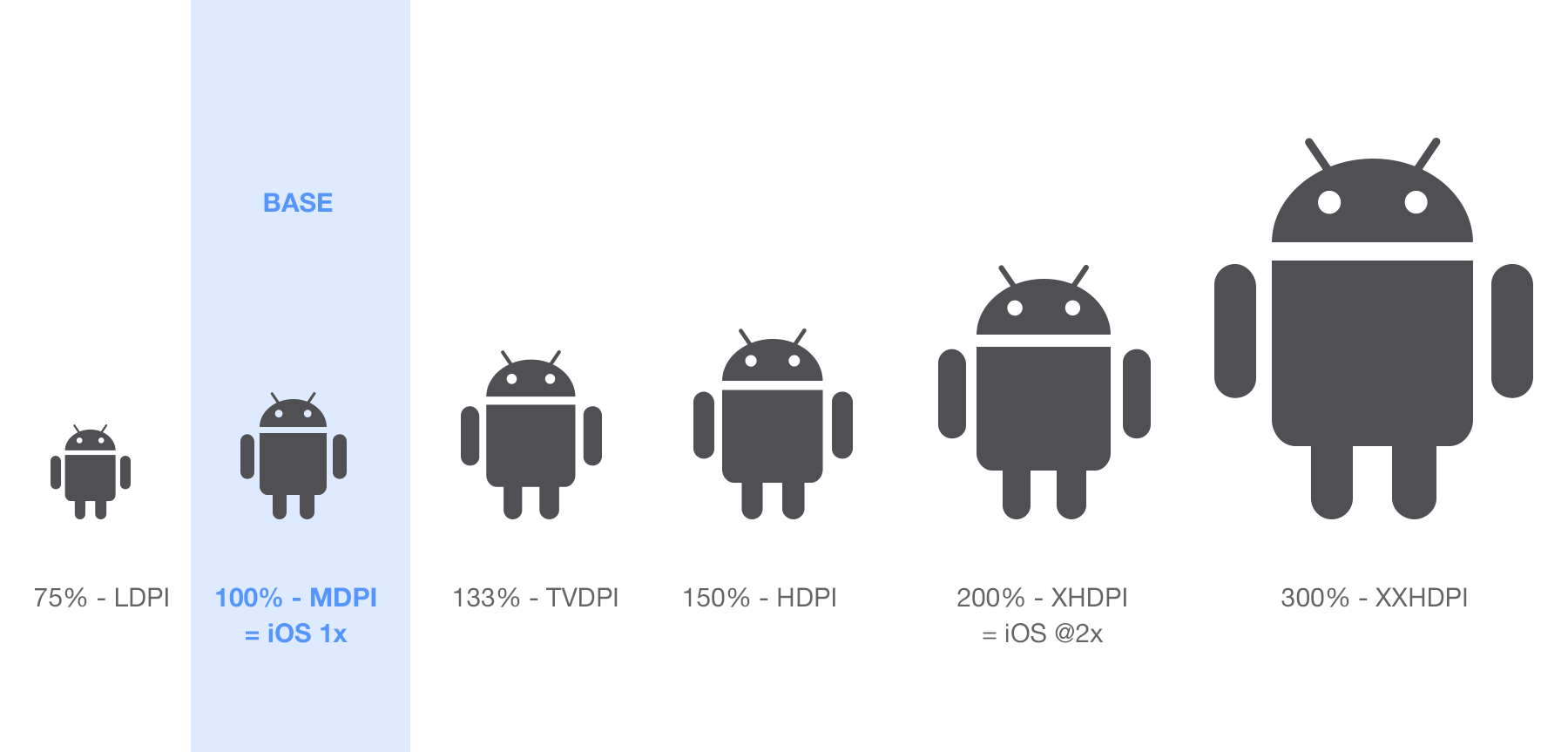

After Long search finally your Android-Action find out a solution for changing image resolution ie. dpi/ppi.

Dots per inch (DPI) in this context, refers to the smallest amount of ink that a given printer can print. Put another way, the more dots that a printer (or imagesetter) can apply per inch, the higher the resolution (and therefore quality of image reproduction) an imaging device can reproduce. (Source : designtalkboard)

Pixels per inch (PPI) is often used interchangeably with DPI. PPI is, arguably, where the confusion started from in the first place. PPI a somewhat relative term. Once a photograph is opened in a program such as Adobe Photoshop and displayed on a computer screen, its relation to print paradigm concepts such as per inch are not always helpful. In many cases it is actually more helpful to talk about the total width and height of the digital image in pixels, rather than pixels per inch or dots per inch. (Source : designtalkboard)


Convert image to bitmap using BitmapFactory, then convert to byte[] array(ByteArray) that will store the Bitmap.compress(). From ByteArray


 ByteArrayOutputStream image_barr = new ByteArrayOutputStream();  
 input.compress(Bitmap.CompressFormat.JPEG, 100, image_barr);  
 byte[] image_byte = image_barr.toByteArray();

Based on the JFIF structure we need to edit 13th, 14th, 15th, 16th, and 17th indexes in the byte array. 

13th index             - Density
14th & 15th index        - X resolution
16th & 17th index        - Y resolution
For example if we need to set for 500dpi as the X and Y resolution, then convert decimal to hex value [use this link for conversion binaryhexconverter]

So 500  = 1F4

 image_byte[13] = 00000001;  
 image_byte[14] = 00000001;  
 image_byte[15] = (byte) 244  
 image_byte[16] = 00000001;  
 image_byte[17] = (byte) 244  

As the same for 200 dpi hex value is C8


 image_byte[13] = 00000001;  
 image_byte[15] = (byte) 200  
 image_byte[17] = (byte) 200  

Intro:
This project allows you to calculate the direction between two locations and display the route on a Google Map using the Google Directions API.

Github Link:
https://github.com/jd-alexander/Google-Directions-Android

Screenshot:

Sample:
The sample makes use of the Google Places API for Android in order to provide a real life example of how the library can be used.
Directions Sample App